Find & Replace
The  Find & Replace feature helps you quickly search for specific words or phrases inside an open procedure. This is useful for checking consistency, locating important details, or updating repeated terms without having to scroll through the entire procedure manually.
How it looks
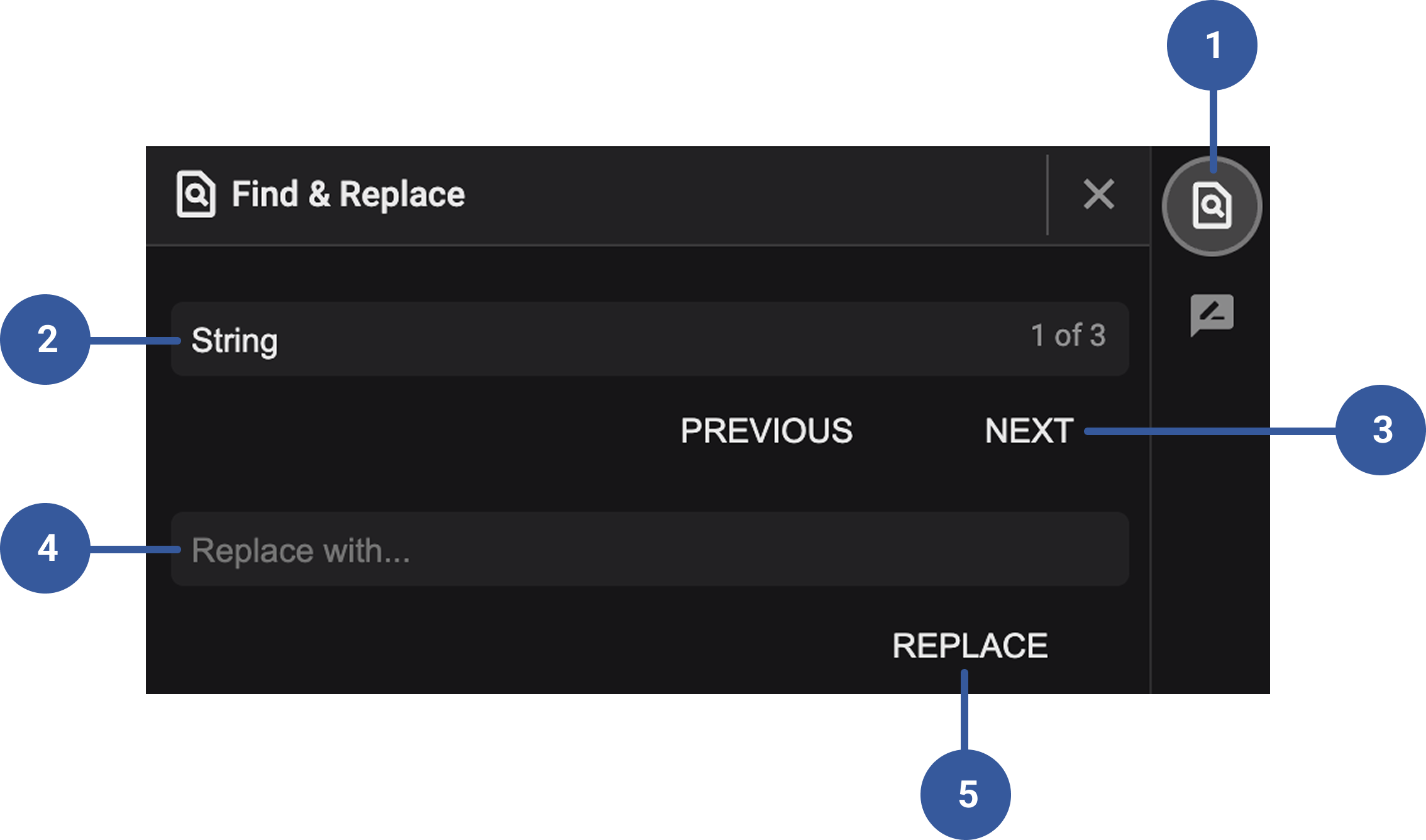
- Find & Replace icon: Opens the Find & Replace function inside the procedure editor.
Search box: Field where you type the word or phrase you want to find.
Find, Previous, and Next buttons: The Find button starts the search and highlights matches. Once results appear, use Previous to jump to the earlier result and Next to move forward to the next one.
Replace with text box: A field where you enter the new word or phrase you want to use as a replacement.
Replace button: Updates the selected result with the new text entered in the Replace with box.
Step-by-step instructions
Open a procedure: Make sure you are inside the procedure you want to edit.
Click the
Find & Replace icon: This opens the search panel in the procedure editor.Enter a search term: Type the word or phrase you want to find in the search box.
Run the search: Click Find to locate matches.
Review results: Use Previous or Next to move between each match.
Enter replacement text: In the Replace with box, type the new word or phrase.
Replace a word: Click Replace to update the selected match with your new text.
Tips and tricks
Use short and specific words for faster results.
If a term appears many times, use the Next and Previous buttons to move quickly through the document.
Always double-check replaced text to make sure context remains correct.