Procedures detail
The Procedure Detail View in RigGuide shows the full content of a procedure. It helps you review the title, general information, attachments, revisions, and detailed step content.
This view is where you can read instructions, checklists, risks, and responsibilities for each step. It ensures that everyone working on the rig follows the same clear and structured procedure.
How it looks
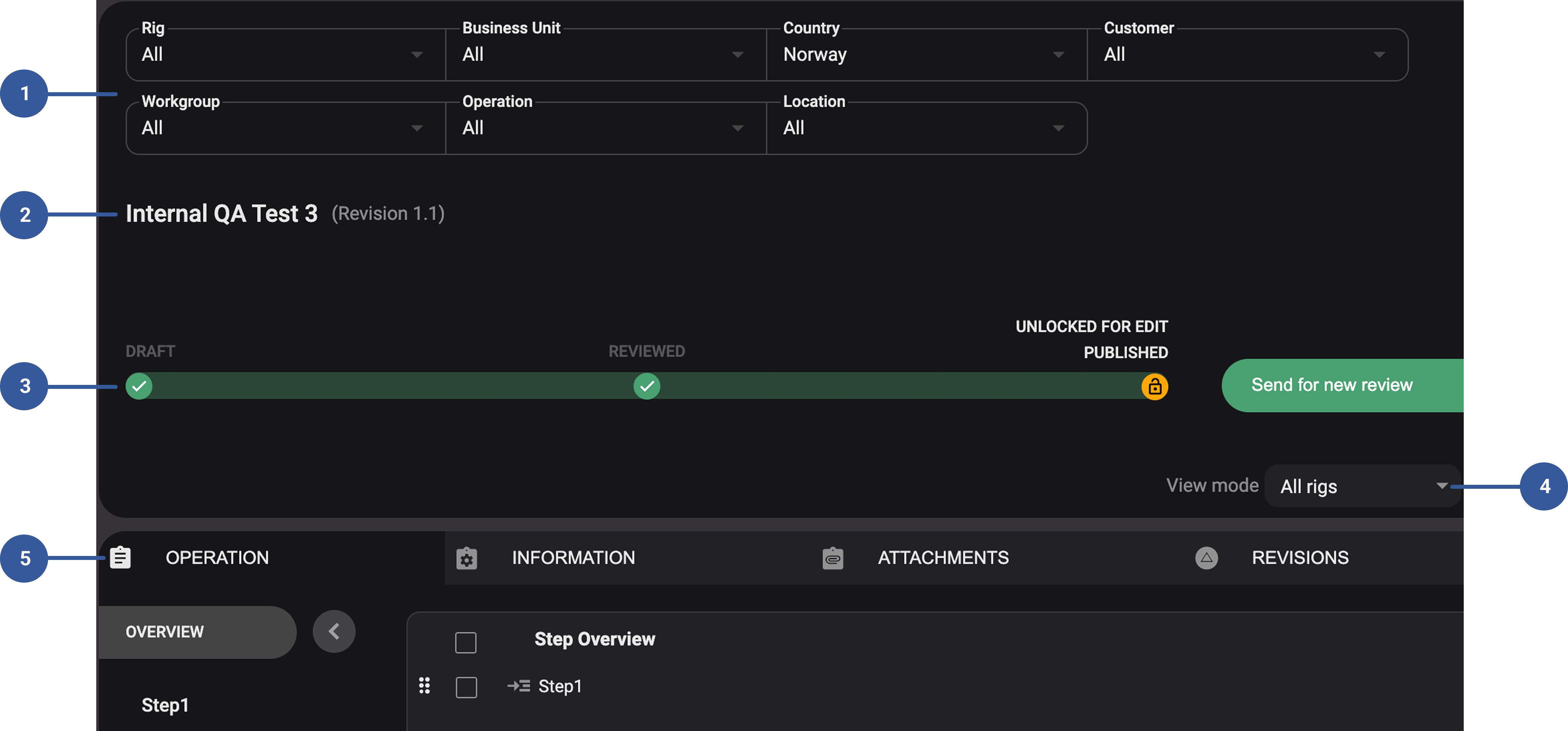
Procedure details: Contains important metadata that helps identify and filter the procedure in the library. Here you will also find the
 delete icon to remove the procedure. Read more about how to delete a procedure here: Delete a procedure
Procedure title: Shows the name of the procedure, making it easy to confirm you’re working with the right document.
Status bar: A horizontal bar under the title that shows the current status of the procedure. This makes it easy to know if a procedure is ready to use, still under review, or already completed.
View mode: Lets you control how rig information is displayed in the procedure. You can switch between:
All Rigs – Shows both the generic procedure content and any rig-specific details for every rig linked to the procedure.
Single Rig – Filters the view so you only see the details that apply to the selected rig.
Main tabs: Across the top, you’ll see four main tabs:
Operation – The step-by-step breakdown of the procedure.
Information – General background, objectives, and technical notes.
Attachments – Linked documents, drawings, or rig-specific files.
Revisions – Full history of changes, including status, dates, and who made them.
Approval process
The approval process in RigGuide ensures that every procedure is properly reviewed and authorized before being published and used in operations. This helps maintain safety, compliance, and consistency across rigs.
You can review the approval state of each procedure through:
The procedure status bar: Shows the current stage of the procedure.
Revision tab: Displays all past revisions with details such as number, status, date, author, and comments.
Approval selection: When a procedure is ready for approval, the author selects one or more registered RigGuide users to approve it.
Statuses you will see include:
Draft - Procedure is being created.
For review - Sent for review with comments possible.
Reviewed - Review process completed.
For approval - Waiting for official approval.
Approved - Approved but not yet published.
Published - Officially published and available for use.
Unlocked for edit - Procedure is temporarily open for further editing.
Step-by-step instructions
Procedure workflow
Write or edit a procedure: Create or update a procedure using RigGuide.
Submit for review: Change status to for review so colleagues can comment using the
 Comments function.
Complete the review: Once comments are resolved, the procedure status changes to Reviewed.
Send for approval: Set the status to For approval and select one or more registered users with access to approve.
Approve the procedure: The approver reviews and confirms. Status updates to Approved.
Publish the procedure: Change the status to Published. At this point, it can be linked to digital plans or used directly in RigFlow.
Track revisions: Use the
 Revision tab to view history, compare versions, or reopen a past revision if needed.
Delete a procedure
Locate the procedure: Find the procedure in the library using search or filter.
Click the delete icon: Use the
delete icon to remove the procedure. This icon can be found on the header of the procedures view.Confirm deletion: The procedure will be permanently removed from the library.
Note
You can only delete procedures in a draft or open for review status.
Tips and tricks
Always ensure the approver has registered access in RigGuide, otherwise, they cannot complete the approval.
Use the
Revision tab to quickly check who made changes and why.If a procedure needs updates after approval, use Unlock for edit to make controlled changes without losing history.