Linked Procedures in RigGuide
Linked procedures allow you to connect approved Standard Operating Procedures (SOPs) in RigGuide to the operator’s digital plans created in RigBridge. This ensures that all work instructions are tied directly to operational planning, making it easier for crews to follow controlled processes.
How it looks
You can access the  Link procedure from the Left sidebar, and then click the Link procedure icon.
The view contains the following:
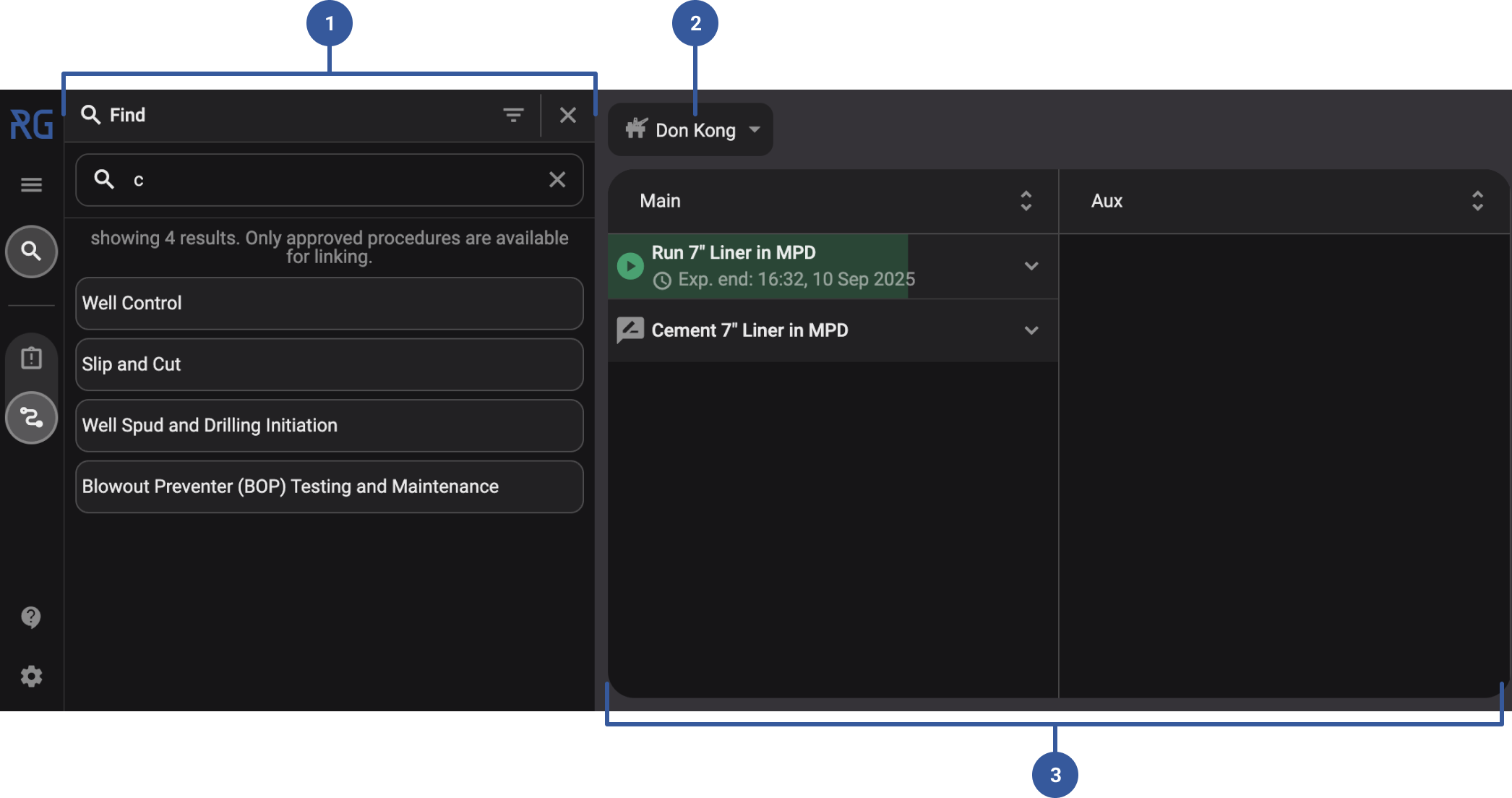
Find modal: Use the find to locate a procedure. Once found, you can click and drag it to a plan or a step. See more on Link a procedure to a plan or step .
Rig dropdown picker: Select the rig where you want to add procedures.
Workgroups with plans: Displays the list of digital plans for the selected rig. Each plan shows Plan name, Expected start and end times, and Status icons.
This layout makes it easy to choose a plan, open its steps, and attach the right procedure at the correct level of detail (plan-wide or at a specific step).
Step-by-step instructions
Link a procedure to a plan or step
Note
Procedures must be Approved before they can be linked. Draft procedures cannot be linked.
Open link procedures: Click the
Link Procedures icon in the Left sidebar.Select rig: From the Rig dropdown above the Main and Aux panels, choose the correct rig.
Choose a procedure: Use the Find search box on the left to locate the procedure. Select the procedure you want to link, from the list.
Attach to a plan: Click on the digital plan or a specific step within the plan where the procedure should be linked.
Confirm link: The procedure is now connected to the selected plan or step. The Linked procedure icon will appear blue, showing it is not yet synchronized with the rig.
Update procedure: A notification will appear in the top-right corner. Click Update to synchronize with RigFlow. Once synchronized, the linked procedures will turn green.
Unlink a procedure from a plan or step
Warning
You can only remove procedures that are not started or are still pending. If a procedure is already running or completed, it is locked and cannot be removed.
Open link procedures: Click the
Link Procedures icon in the Left sidebar.Select rig: From the Rig dropdown above the Main and Aux panels, choose the correct rig.
Find the procedure in the plan: Open the plan or a specific step that contains the linked procedure. A
 Linked procedure icon will show where procedures have been added.
Remove link: Open the list of
Linked procedures and click the  Remove procedure icon next to the plan or step where you want to unlink the procedure.
Update procedure (if needed): If the plan is already synchronized with RigFlow, a notification will appear in the top-right corner. Click Update. This will also remove the procedures you unlinked that were pushed to the rig.
How to Search for a Procedure
Open the Find modal: Type keywords (for example, the procedure title or operation type) into the Search for procedure field.
Apply smart filters: Click the
 filter icon in the header of the Find modal to narrow results. You can filter by Country, Workgroup, Operation, and other categories.
Select the correct result: Click the procedure you want to link.
Tips and tricks
Check procedure status: Always verify the status before linking. Only Approved procedures can be linked.
Keep procedures up to date: If a procedure has been revised, make sure the linked version is current by checking the Revision tab.
Understand procedure counts in plans:
When a plan is collapsed, the number shown includes all procedures linked at both the plan level and its steps combined.
When you expand the plan, the numbers are separated. The plan level shows only the procedures linked directly to the plan. Each step shows the procedures linked to that specific step.
Example: If a collapsed plan shows 5 procedures, when expanded, it may show 2 on the plan, 2 on one step, and 1 on another step.
Troubleshooting
If a synchronization error occurs, the linked procedure will stay blue even after you click Update. If you are unable to delete the procedure with this error, please contact our support team for assistance.