Procedure library
The  Procedure library in RigGuide provides access to all available procedures created and managed in RigGuide. It allows users to find and start procedures that aren’t already linked to a plan, making it useful for spontaneous operations or general task support.
All procedures listed in the library come from RigGuide, whether or not they’re connected to a plan. From here, users can search, preview, and assign procedures, bringing them into active use under  Planned Procedures. This article explains how to search, filter, and start procedures from the library.
How it looks
Procedures in RigGuide are accessible from the Right sidebar. It allows users to manage procedures outside the plan context and is divided into: Planned procedures,  Archived procedures and the Procedure library.
Procedure library
The Procedure library is a repository of all available procedures.
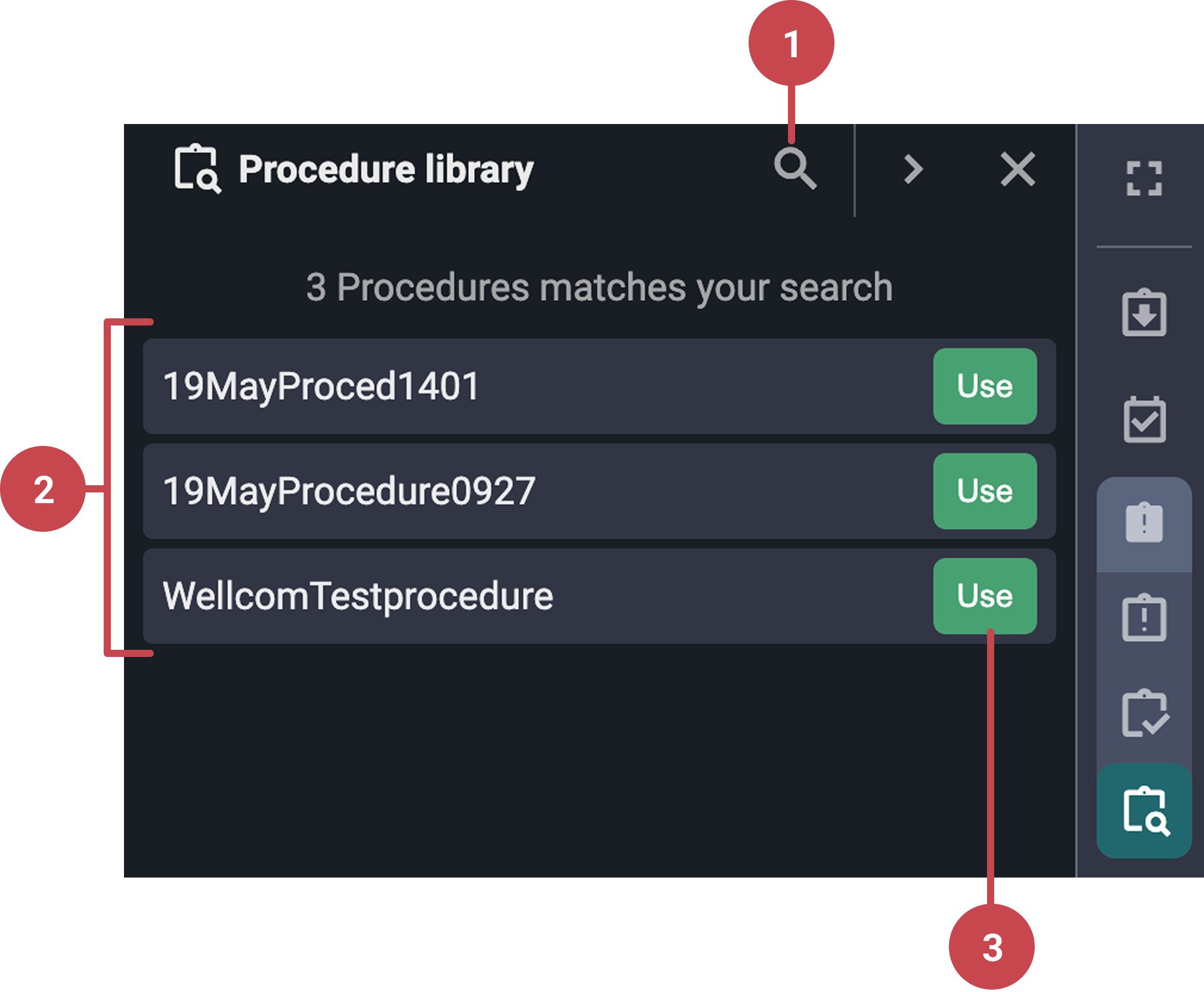
 Search and filter: This icon allows you to search for procedures using filters like customer, workgroup, operation, and location.
Procedure cards: Clicking on a procedure card displays a preview of each procedure, with
 Operation,
  Information, and
  Attachments tabs.
Use button: Colored button that allows you to initiate a procedure. Once confirmed, the procedure moves to
Planned Procedures.Notice
Procedures in the library are populated from RigGuide and are accessible regardless of whether they are linked to any plan.
Step-by-step instructions
Accessing Procedures from the Right sidebar
Click on the procedures icon: In RigGuide, go to the Right sidebar and open the
Procedures icon.Select the desired option: Once open, you will see three icons representing three different options. Click on the
Procedure library icon to open its corresponding panel.
Procedure library
Select a procedure from the library: Navigate to the
Procedure library tab, apply filters by clicking on the search/filter button located on the top right of the library panel, and browse the narrowed-down list of procedures.Select an action: After selecting a procedure, you can:
Click Use directly on a procedure card.
Or click the procedure card itself to preview the content before deciding.
Add it to planned procedures: After reviewing the procedure, click Use on the procedures card or header.
Add roles and crew: After clicking use, a modal appears asking you to assign participants. You may add roles and crew by selecting them from the dropdown. Click Set selected to confirm the participants.
Confirm procedure: A confirmation message appears indicating the procedure is now active. The procedure is added to the
Planned procedures tab.
Examples
A user searches for a specific procedure in the Procedure Library, uses it, and assigns it to their team.
Tips and tricks
Filter effectively. Use
filters in the Procedure Library to quickly locate relevant procedures by operation, workgroup, or date.