Linked Procedures
The  Procedures feature in RigGuide ensures that critical operational steps are followed and documented correctly during rig activities. It supports both planned tasks and unexpected operations, helping teams stay compliant and work safely.
These steps are defined in Standard Operating Procedures (SOPs), documents that explain how to carry out routine or specific tasks in a safe and consistent way. SOPs help ensure that work is done properly, meets company standards, and follows industry rules.
All procedures are added through RigGuide a system used to build, edit, and keep procedures up to date. It supports both general and rig-specific procedures and makes it easy to share them across multiple rigs. Once approved, procedures are sent automatically to RigFlow, where they appear in the Procedures app, even if they aren't linked to a plan. To read more about RigGuide click here: RigGuide.
This article will focus on procedures linked directly to plans and steps.
How it looks
When procedures are linked to plans, they are directly visible within the Plan Overview interface in two ways:
Plan header icon

When a plan has linked procedures, a procedures icon will appear on the plan header. A colored badge will indicate how many procedures are on the plan and their status:
Badge with a number - Indicates there are still unperformed procedures in the plan.
Badge with a check mark - Once the procedures that are linked are completed, the procedures icon gets a colored check badge.
Step header integration
If a procedure is linked to a specific step, a Procedures icon will appear in the step header when the plan is expanded.
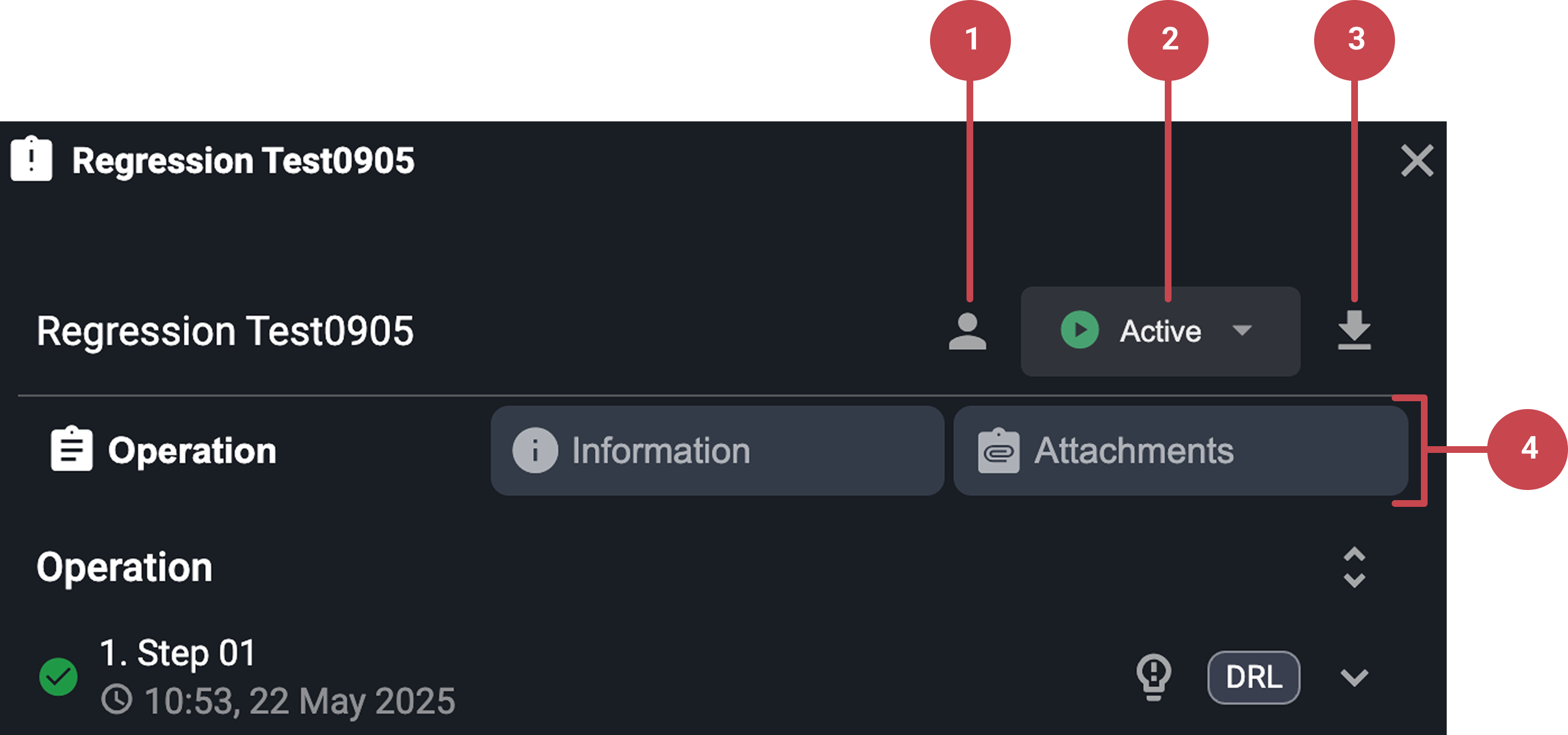
Clicking the procedure icon opens a modal window, where the procedure can be performed directly. It contains:
 Participant icon: Clicking it allows the user to view, add, or remove participants from the procedure.
Completion button: Allows the user to complete the procedure or remove it.
 Download button: Lets the user download the procedure as a PDF.
Content tabs: The modal includes the operation, information, and attachments tabs.
Once all the procedures added to the steps are completed, a colored check mark will appear on the procedures icon as a badge.
Step-by-step instructions
Finding and Opening Linked Procedures
When a plan has linked procedures, you will see the
procedures icon on the plan header.The icon includes a colored number badge indicating how many procedures are not yet performed.
If a procedure is linked to a specific task or step, it appears on the right side of the step header when the plan is expanded.
Click the linked procedure to open it in a modal window overlay.
Using and Completing the Procedure
Inside the modal, you can view the procedure steps and any related content, such as report backs.
As a participant, you can complete the steps assigned to your role.
Note
If a procedure step is not assigned to your role, you will not be able to complete it even if you're a participant in the procedure.
Once all steps are completed, or if you're authorized, you can choose to complete the entire procedure or keep it active.
Procedures completed this way are moved to the
 archived procedures section on the procedures app on the Right sidebar.
Examples
A Driller opens a plan to start a tripping operation and sees a linked safety procedure in the step header, completes the checklist directly in the modal, and marks it done before continuing the task.
Tips and tricks
Always check both linked procedures and planned procedures: Linked procedures in the plan might not appear in the Procedures App unless participants are assigned.
Assign roles carefully: Only users with that specific role can complete that step, even if they’re already listed as a procedure participant.
Use modal view for quick actions: Linked procedures open as modals, enabling quick access and step completion without navigating away from the plan.