Comments
The  Comments feature in RigGuide is part of the Smart Review tool. It allows users to highlight parts of a procedure and add comments or ask for input from others. This is useful for reviewing procedures, collecting feedback, and ensuring clarity before approval.
How it looks
The feature appears as a highlighted text or field within a procedure. Each comment is attached to a specific location in the procedure.
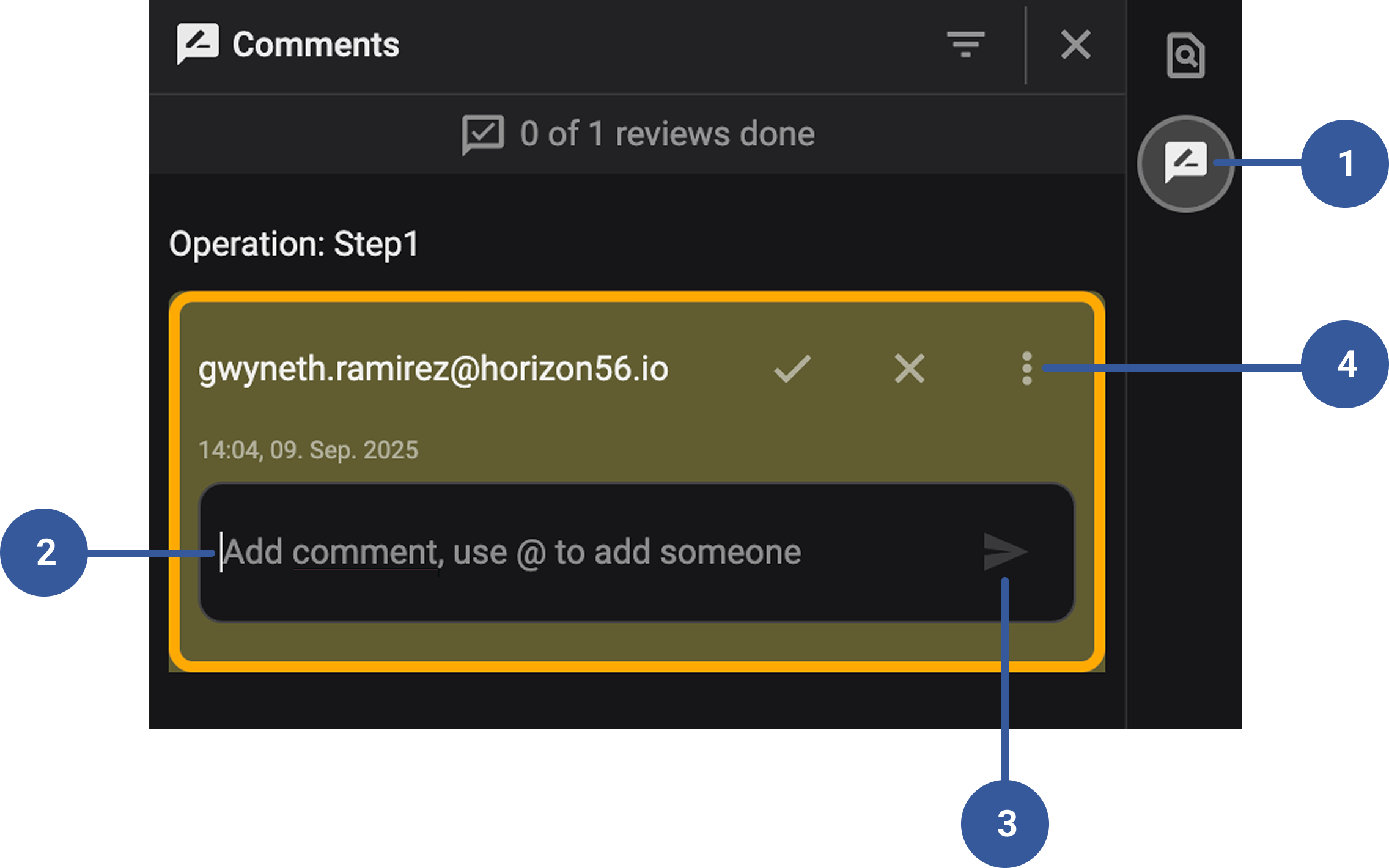
- Comments icon: Appears next to highlighted text or fields where a comment has been added. Clicking the icon opens the related discussion.
Comment text box: A space where you type your feedback, questions, or suggestions.
 Submit icon: Used to save and post your comment once you have written it.
 Accept,
  Decline, and
  More menu: Options available on each comment. Accept marks the comment as resolved, decline rejects the suggestion or feedback, and more menu provides additional actions such as reviewing details or managing comment history.
Step-by-step instructions
Open a procedure: Go to the procedure you want to review in RigGuide.
Add a comment to a section: Hover over the section and click the
comments icon. This highlights the section and opens the comments box. Type your feedback, then click submit.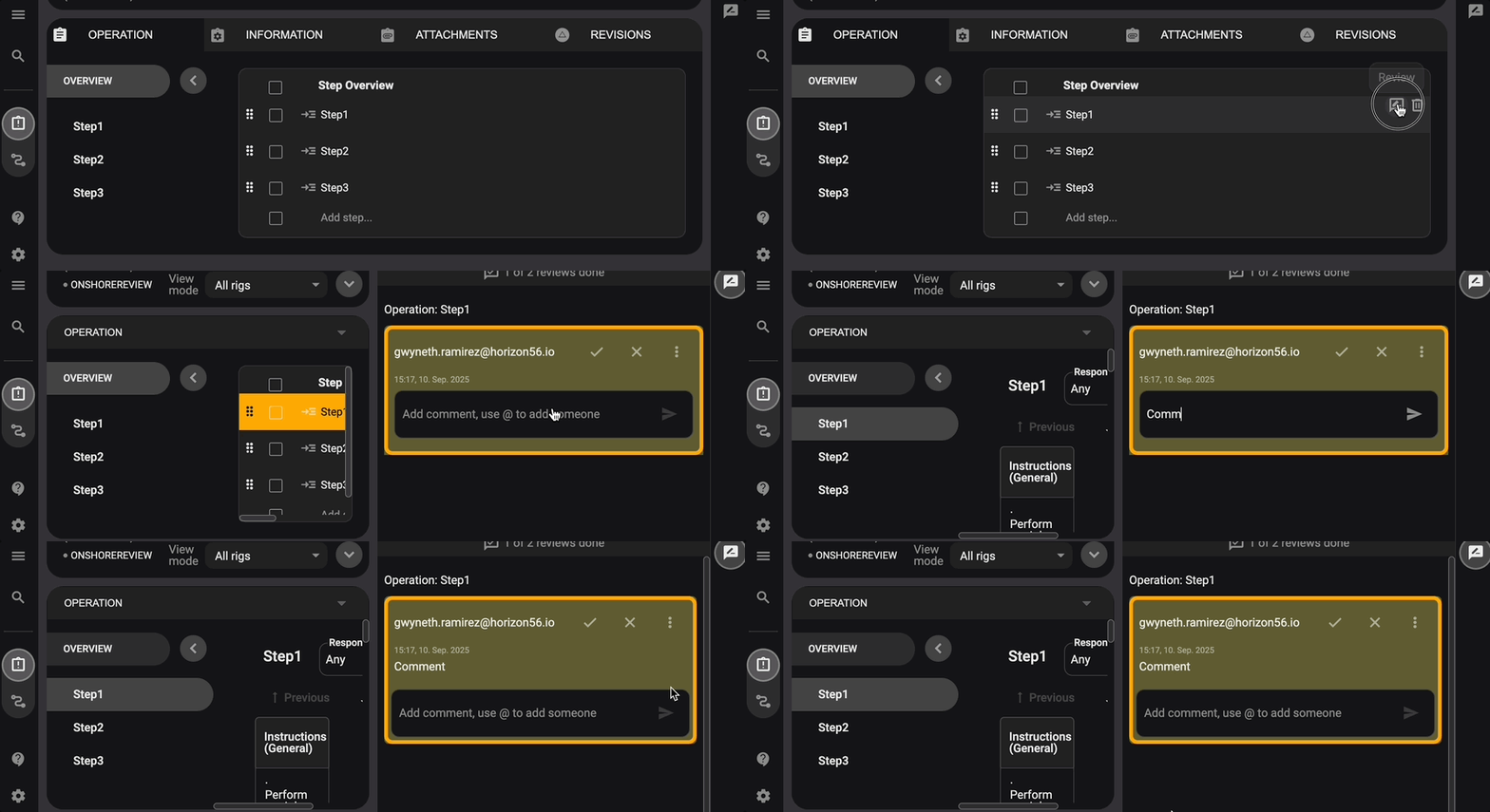
Add a comment to text: Highlight the text you want to comment on and click the
comments icon in the toolbar. Enter your feedback in the comments box, then click submit.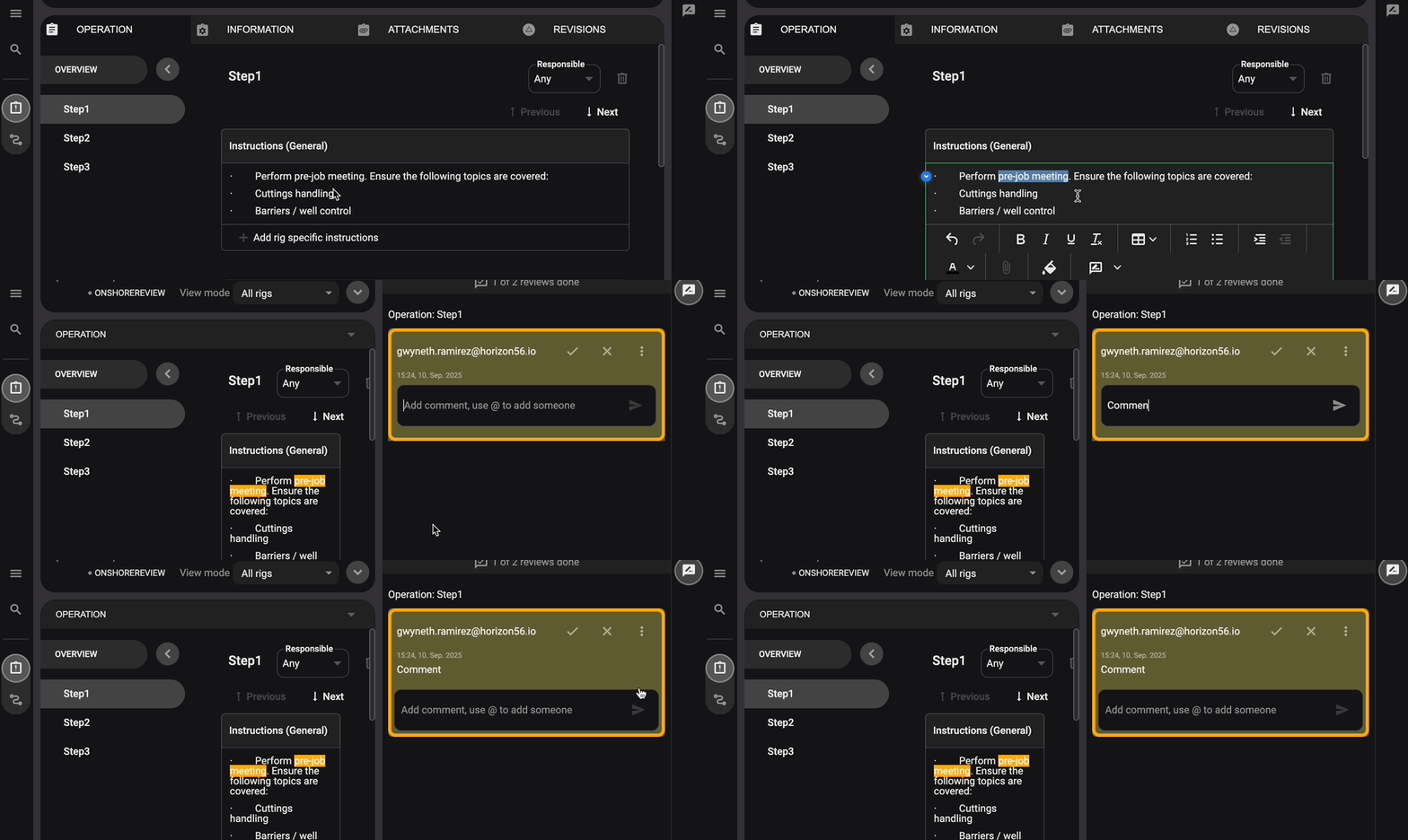
Request input (optional): Enter the email address of another RigGuide user if you want their feedback. They must already have approved access to RigGuide.
Review responses: The recipient will see the comment linked to the procedure and can reply.
Finalize or reject: Use the accept or decline options, or the more menu, to manage the comment.
View history: All comments connected to a procedure are saved and remain available in the history for reference.
Examples
A reviewer highlights a step describing equipment setup and comments: “Should we specify torque values here?”
The procedure author reviews the comment and updates the step with the correct torque values before marking the comment as accepted and completed.
Tips and tricks
Use comments to flag unclear instructions before the procedure is approved.
Always assign comments to specific text or steps to make them easy to track.
Keep in mind that only approved RigGuide users can access review entries.