Procedures in RigGuide
Procedures in RigGuide are Standard Operating Procedures (SOPs) that describe tasks, operations, and safety steps. They can be created, edited, deleted, and connected to operator digital plans. Managing procedures correctly ensures safe, consistent, and efficient operations across rigs.
How it looks
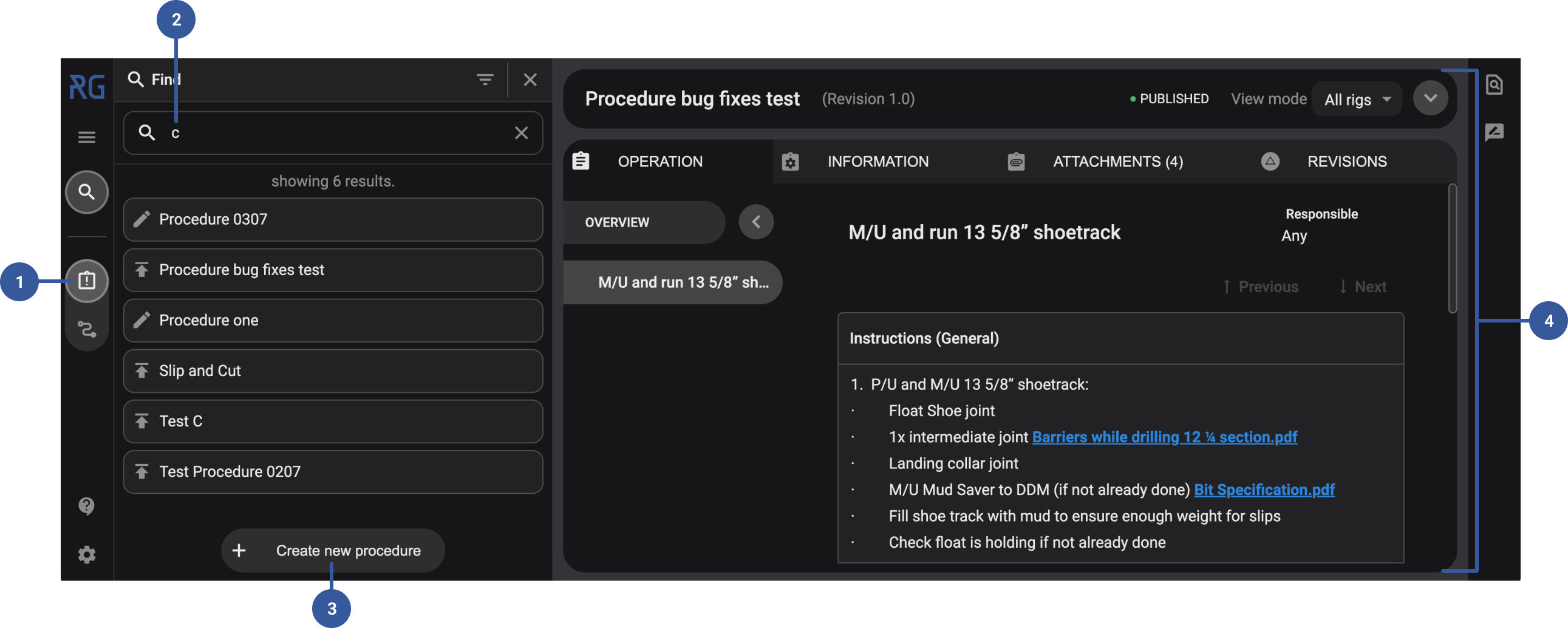
You can access the Procedures overview from the RigGuide by clicking the Procedures icon in the Left sidebar.
The view contains the following:
Location of Procedures: Opens the procedures. From here, you can view all available procedures, edit existing ones, or create new ones.
Find panel: Opens together with the procedure and is positioned to the left of the main view. Use the search field to type free-text queries or apply filters. The list of procedures updates based on your search.
Create a new procedure: Create New Procedure: Available at the bottom of the Find Panel, or in the main view if no procedure is selected. Read more about how to Create a procedure.
Procedure detail view: Opens in the main panel when you select a procedure. The detail view includes several tabs for structured information:
Operation tab: Displays all step-by-step instructions.
Information tab: Provides objectives, technical details, and supporting context.
Attachments tab: Contains linked files, either general or rig-specific.
Revisions tab: Shows the version history, including changes, approvers, and dates.
Step-by-step instructions
Create a procedure
Open Procedures: Click the Procedures icon in the Left sidebar.
Create new procedure: Select the button
 Create new procedure.
Enter metadata: In the Add Procedure window, fill in the following fields:
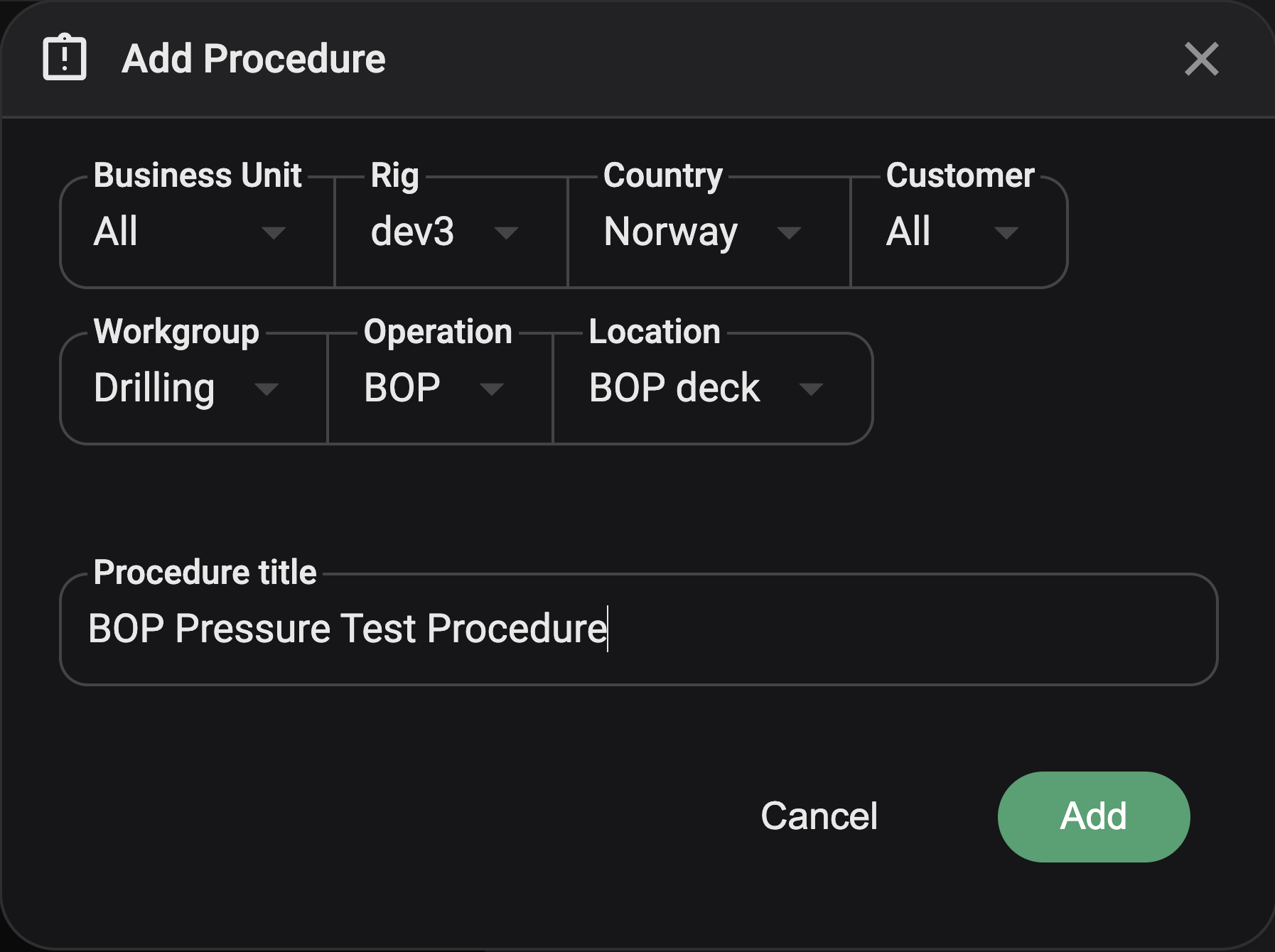
The Add Procedure window showing metadata fields.
Business Unit – Select the relevant business unit.
Rig – Choose the rig where the procedure applies (mandatory).
Country – Optional.
Customer – Optional.
Workgroup – Optional.
Operation – Optional.
Location – Optional.
Procedure Title – Enter a clear, descriptive title (mandatory).
If mandatory fields are missing (Rig and Procedure Title), the system will show a warning: "Mandatory fields missing."
Click Add: Once all required fields are complete, press Add to create the procedure.
Add content: Continue by filling in general and step-related content such as objectives, instructions, checklists, risks, and attachments. You can read more about it at Procedures detail.
Save and review: Save the procedure. It will then move through Review and Approval before being marked as Approved.
Edit a procedure
Select procedure: Open Procedures and in Find, search and open the procedure you want to edit.
Unlock if needed: If the procedure is already approved, use Unlock for Edit to make the changes.
Make changes: Update what's needed, such as titles, instructions, attachments, or rig-specific content.
Save and resubmit: Save changes. The procedure will go through the review and approval cycle again.
Delete a procedure
Read more about how to delete a procedure at Procedures detail.
Connect or link a procedure
Read more about how to link or connect a procedure at Linked Procedures in RigGuide.
Examples
A Well Control Test procedure can be created, reviewed, and connected to the drilling plan at the step where equipment checks are required.
A Tripping Procedure can be edited to include rig-specific checklist items and linked to the operator’s plan step for tubular handling.
Troubleshooting
Cannot add a new procedure
Verify that all mandatory metadata fields are filled in when creating the procedure.
Required fields: Rig and Procedure Title.
If a required field is missing, the system displays a warning indicating that mandatory fields are incomplete.
Procedure not available for linking
Only procedures with status Approved can be linked.
Ensure you selected the correct rig or unit; only procedures relevant to the chosen rig/unit will appear when linking.
Confirm that the operator’s digital plan exists in RigBridge and is not in draft.
Unable to edit a procedure
Approved procedures are locked for editing.
Use Unlock for Edit to reopen the procedure; changes will undergo review and approval again.
The linked procedure is not the latest version
Open the Revision tab to confirm the current approved revision.
If a newer revision is approved, link the updated version to the plan as needed.
Cannot find a procedure in the library (when linking)
Check that the procedure’s metadata includes the selected rig/unit.
Use search and filters (business unit, country, operation, workgroup, location, status) to refine results.
Edits after completing a procedure
After completion in RigFlow, the procedure instance remains editable for 24 hours (configurable). After that, it is locked in the archive.
Tips and tricks
Always include rig-specific variations (attachments, risks, checklists) to reduce duplication of procedures.
Use the Review feature to collect input from colleagues before approval.
Regularly check the Revision Tab to keep linked procedures up to date.