Revisions
 Revisions in RigGuide help you keep track of changes made to Standard Operating Procedures. Each procedure has a full history so you can see what was updated, when it was updated, and by whom. This ensures accuracy, accountability, and compliance with company standards.
How it looks
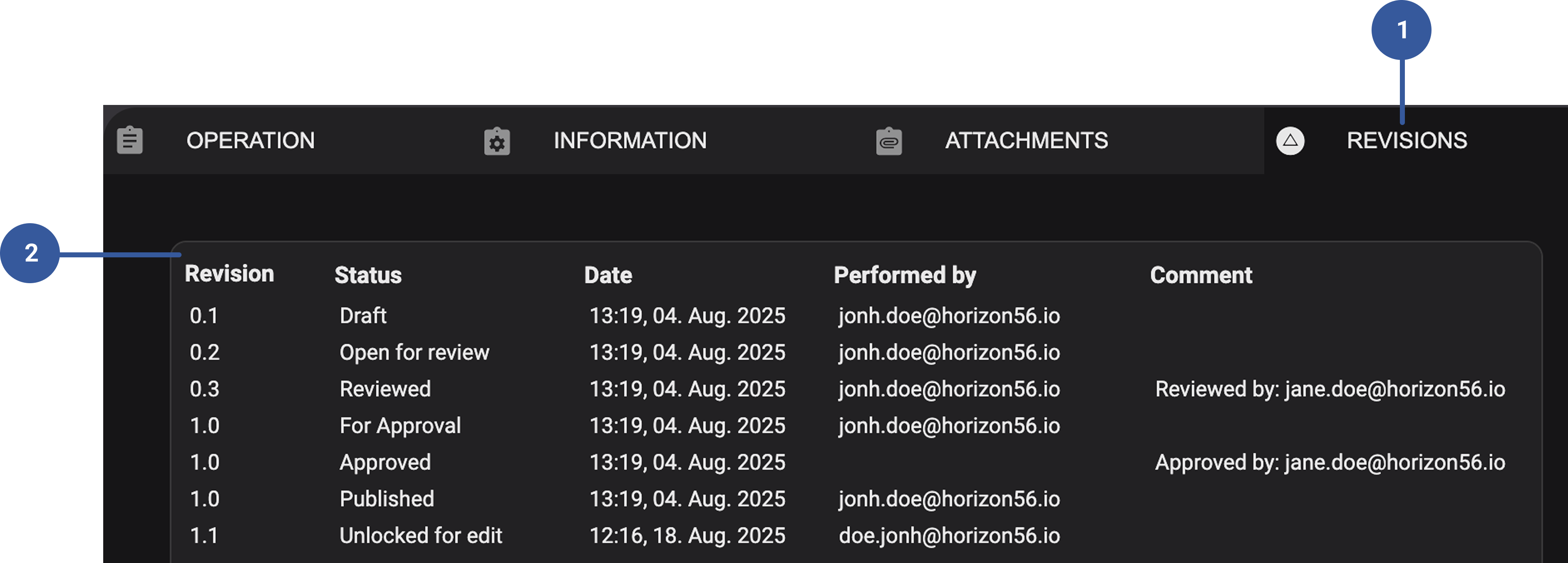
- Revisions tab: Found inside each procedure. Shows all past revisions with details.
Revision overview: Includes revision number, status, time and date, author, and revision comments.
Step-by-step instructions
Open a procedure: Select the procedure you want to review.
Go to the Revision tab: Click the
Revision tab to view revision details.Check revision history: Review the list of revisions. Each entry shows:
Revision number.
Current status.
Date and time.
Performed by (user).
Comments.
Compare revisions: Select any past revision, hover over them and click on their
 menu button to open the revision in another window, or open a module to compare with the current version.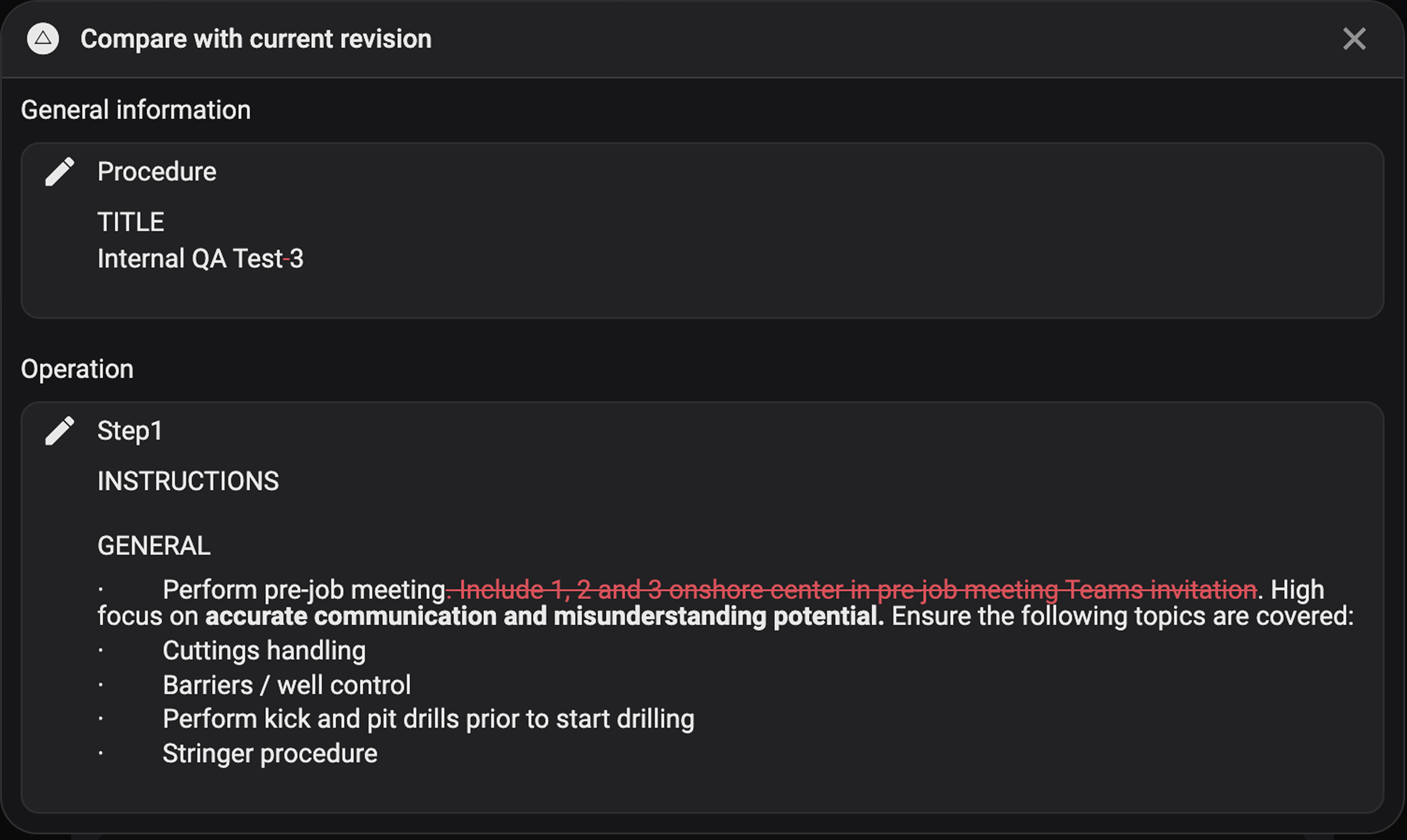
Edit and save as new: If you need to make changes, you can edit an older revision and save it as a new procedure.
Approval process: If a new revision is created, select one or more approvers. They must be registered RigGuide users.
Publish: Once approved, the revised procedure can be published for use.
Examples
Updating a BOP Test Procedure: If safety requirements change, you can revise the procedure, document the update, and publish the new version.
Adding Rig-specific information: You can edit a generic procedure, add rig details, and save it as a revision without creating an entirely new document.
Tips and tricks
Always add clear revision comments so others know what changed and why.
Use the Unlock for edit function to add rigs or update details to an already approved procedure.
If comparing revisions, use the revision overview to quickly spot differences.