Search and filters
The  Search and
  Filter functions in RigGuide help users quickly find the right procedure from the library. These tools are especially useful when working with a large number of procedures across different rigs, locations, or operations. Using them correctly saves time and ensures you always work with the correct document.
How it looks
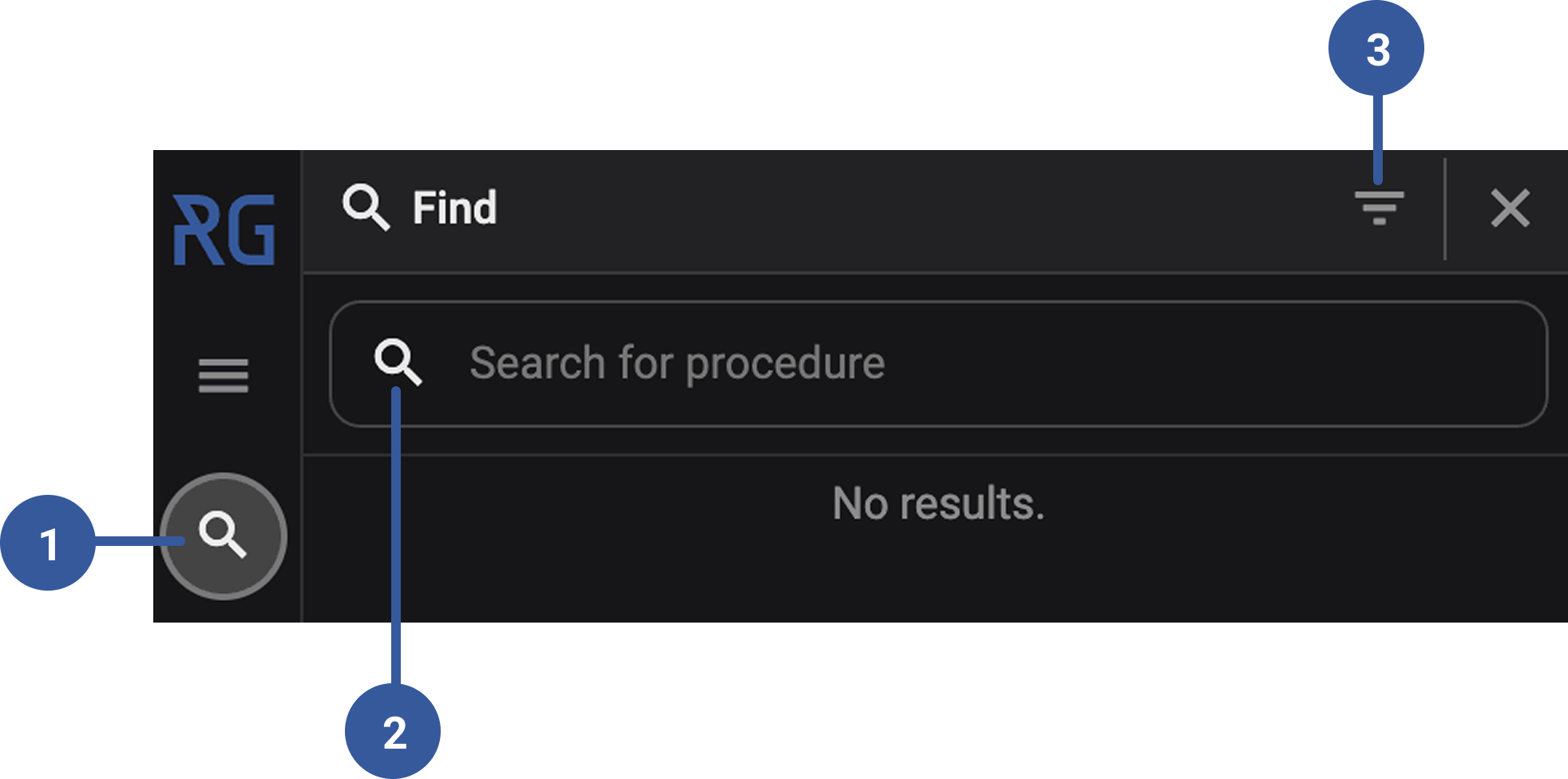
- Find feature: Opens the global library of procedures.
Search box: General search box for free-text searching.
- Filter panel: It allows you to narrow down results by categories such as rig, country, operation, or procedure status.
Step-by-step instructions
Using the search function
Open the find feature: Click on the feature
icon, this opens the global library.Type in the general search box: Enter a keyword (for example, "BOP test").
Review results: The system displays all procedures that match your search term.
Notice
Search and filter results depend on whether you are in  Procedures mode or
  Link procedures mode.
Using the smart filter
Open Smart Filter: Look for the filter options in the procedure library.
Select a category: You can filter by:
Rig
Business unit
Country
Customer
Workgroup
Operation
Location
Status
Apply filter: The list updates to show only procedures that match your choices.
Combine filters if needed: Use more than one category to refine results further.
Examples
A drilling engineer looking for “Slip and cut operation” can type it directly in the search box.
A rig manager can filter by Country = Norway and Rig = Ocean Explorer to find procedures relevant to that unit.
In Link procedures mode, the same filters will only return approved procedures available for linking.
Tips and tricks
Use
Smart Filters when you know details like rig, country, or operation type.Use the
general search box when you only know part of the procedure title.Combine both search and filter for best results.
Remember: in
Link Procedures mode, only approved procedures will appear.